
Create your App Store Connect API key
Vink calls App Store Connect from your phone — your API key never touches our servers. To make those calls, you need a key from your App Store Connect team. Here's how to create one and paste it into Vink.
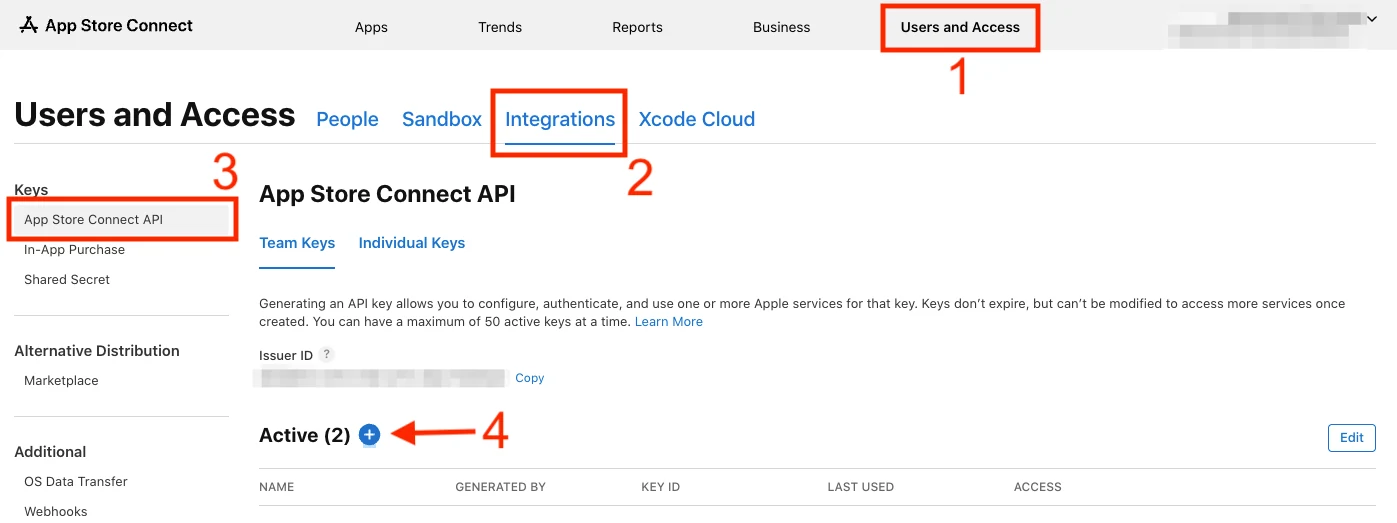
1. Open Users and Access → Integrations
Sign in to App Store Connect and go to Users and Access → Integrations → App Store Connect API.
2. Generate a new key with Customer Support access
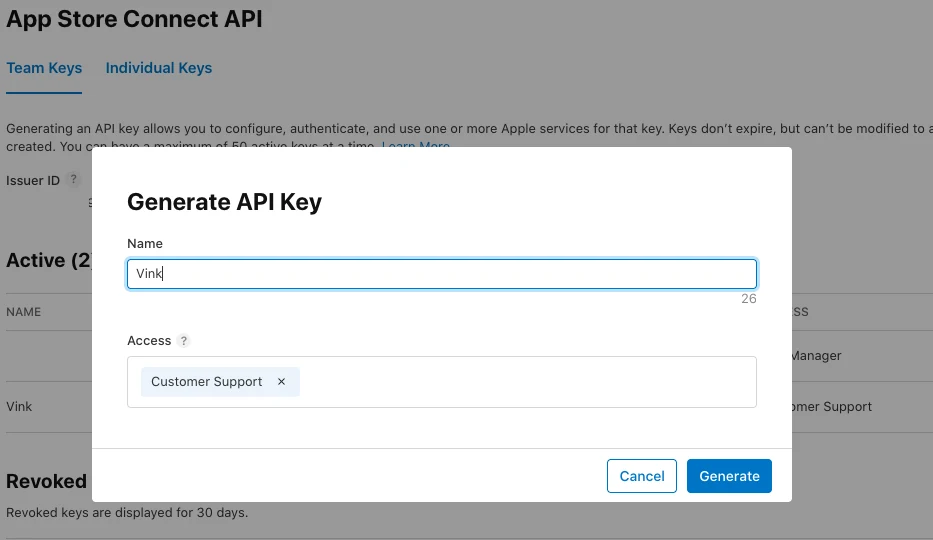
Click Generate API Key (or the + button if you already have keys). Give it a recognizable name like Vink, then pick Customer Support as the access role.
3. Download the .p8 file and note the Issuer ID
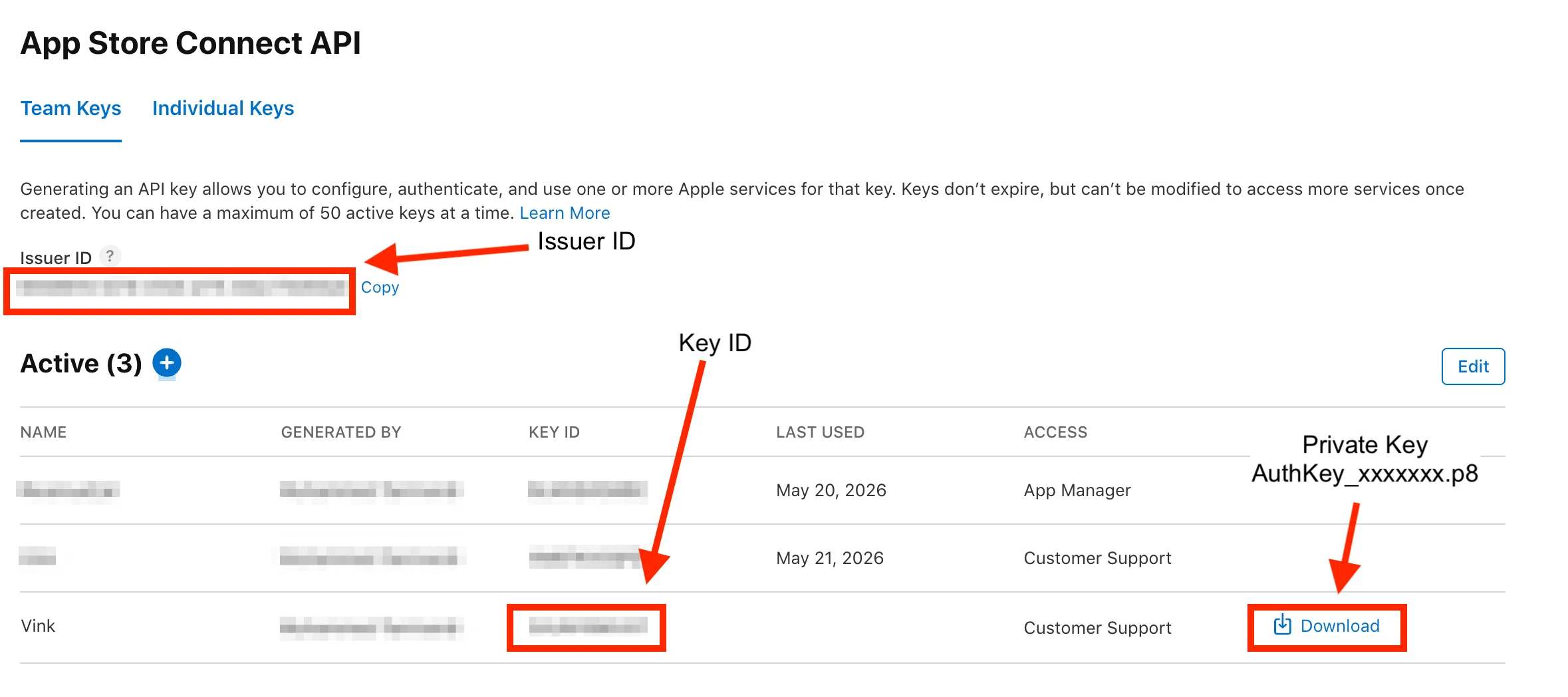
After Apple generates the key, hit Download API Key. You'll get a .p8 file (the private key). On the same page, copy the Issuer ID (shown above the "Active" table) and the Key ID (the new row's leftmost column).
.p8 file.4. Paste the key into Vink — or scan it from Vink
On your iPhone, open Vink and go to Settings → Connect App Store Connect. Three fields:
- Key ID — short ID from the Active keys table. Tap the scan icon next to the field and point your iPhone at App Store Connect on your Mac; Vink reads the value with iOS Live Text. Or paste it.
- Issuer ID — the long UUID shown above the table. Same scan trick works here, saves you typing a 36-character UUID by hand.
- Private Key (.p8) — open the downloaded
.p8in any text editor and paste the entire contents, including the-----BEGIN PRIVATE KEY-----and-----END PRIVATE KEY-----lines.
Tap Save. Vink immediately fetches your apps and any pending reviews. From there it's swipe-to-reply.
Where your key actually lives
Inside the iPhone Keychain on your device, encrypted by iOS, accessible only to Vink. The key is used to sign requests to App Store Connect from your phone — the call goes phone → Apple, with our backend nowhere in the path. See the Privacy Policy for the full data flow.
Stuck?
Open Vink → Settings → Contact Support and tell us where you got blocked. Screenshots welcome.